
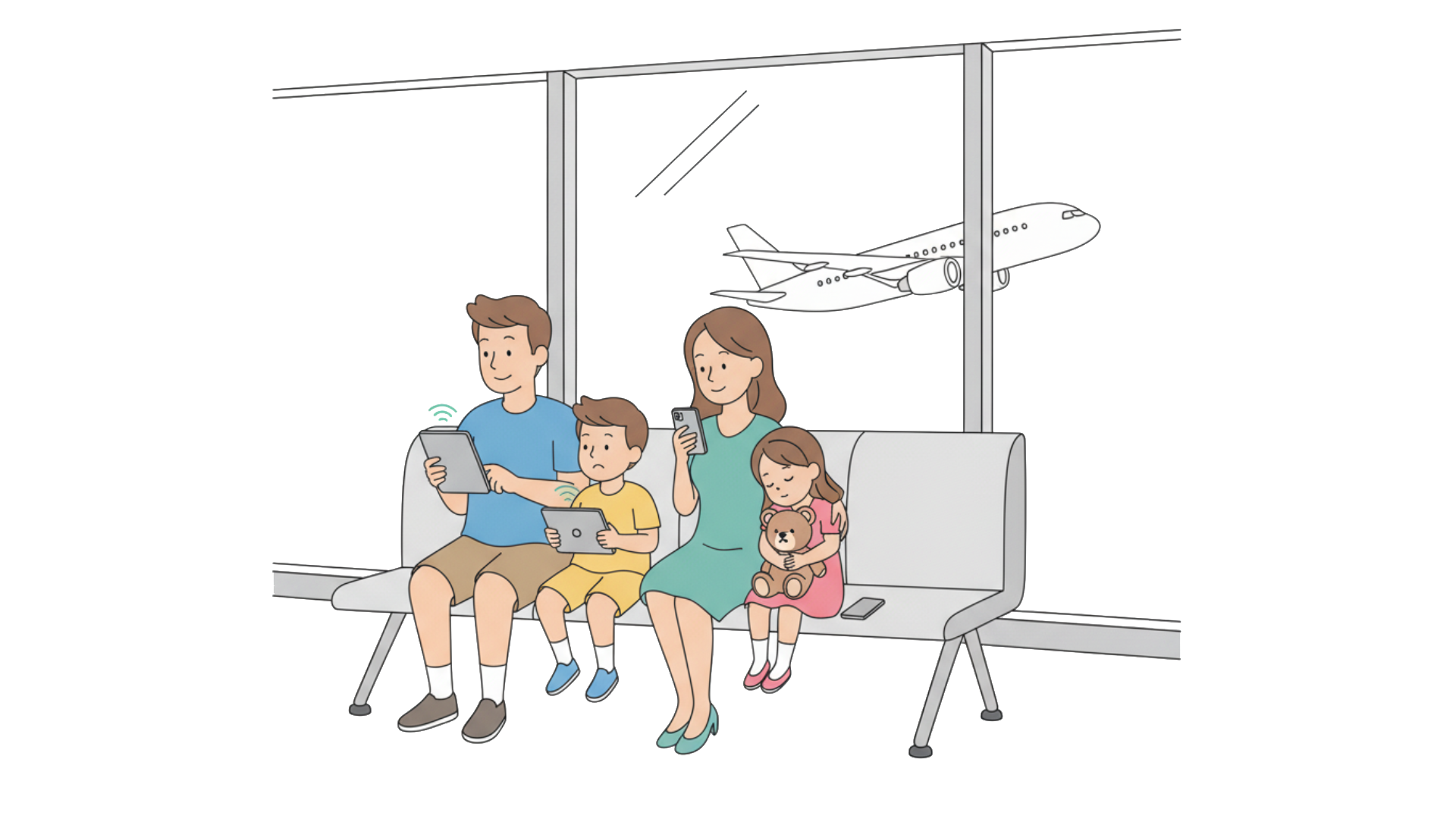
You’ve booked the flights, researched the hotels, downloaded offline maps. But when your family lands in Barcelona:
- Your teenager’s phone has racked up roaming charges before you clear customs
- Your spouse’s eSIM won’t activate because they installed it weeks ago
- Your phone is connected, but messages are routing through your home carrier
These mistakes happen when families manage four separate eSIM accounts across different providers. Here are the six setup errors families consistently make—and how to avoid them.
Mistake #1: Forgetting to Disable Primary Carrier Roaming
The Problem
You install your eSIM and connect to local data. But your home carrier (Verizon, AT&T, T-Mobile) remains active in the background, accumulating international roaming charges.
What Happens
- Background processes connect through your primary carrier
- Incoming calls trigger roaming fees even if unanswered
- TravelPass features auto-activate without consent
- Each family member’s device needs separate configuration
The Cost
International roaming: $2.05-$2.99 per MB or $10-$15 per day per device. A family of four: $40-60 in daily charges.
The Fix
Before departure:
- Settings → Cellular/Mobile Data
- Select primary carrier
- Disable “Data Roaming”
- Disable “This Line” entirely
- Repeat for every family member’s device
Mistake #2: Activating eSIMs Before Travel (Wasting Validity Period)
The Problem
Most eSIMs begin their validity period upon activation—not when you land. Activate a 30-day plan two weeks early, and half the coverage expires before your trip begins.
This is especially problematic for families in countries already covered by their plan. For example, a family from Australia purchasing an Asia package that includes Australia—if they activate at home to “test it,” the validity period starts immediately, wasting days before they even leave for Asia.
What Happens
- 7-day plans expire mid-trip
- Families pay for unusable days
- Coverage begins while still at home (if your country is included)
- Four separate plans = four validity windows to track
The Cost
Activating a 14-day plan one week early wastes 50% of coverage. Family of four with $40-60 plans: $80-120 wasted.
The Fix
Activate only when you need connectivity:
- If your country is NOT in the plan: activate after landing
- If your country IS in the plan: activate only when you need the service
- Keep devices in airplane mode until ready
- Set activation reminders for each family member
Mistake #3: Not Enabling Low Data Mode
The Problem
Default device settings consume data aggressively. Without Low Data Mode, families burn through data in days instead of weeks.
What Happens
- Photos sync at full resolution (200-300MB/hour)
- Apps refresh constantly in background
- Video content preloads automatically
- Each device needs individual configuration
The Cost
Without Low Data Mode, families consume 3x their intended data, requiring emergency top-ups at 2-3x normal rates.
The Fix
For iPhone:
- Settings → Cellular/Mobile Data → Select eSIM line
- Enable “Low Data Mode”
- Settings → Photos → disable “Cellular Data”
For Android:
- Settings → Network & Internet → Data Saver
- Enable Data Saver
- Add exceptions only for critical apps
Apply to every device.
Mistake #4: Allowing Automatic App Updates Over Cellular
The Problem
Devices auto-update apps over cellular by default. Multi-gigabyte updates download overnight without permission.
What Happens
- System updates trigger automatically
- Games download massive updates (Genshin Impact: 15GB+, Fortnite: 10GB+)
- App stores refresh in background
- Significant data consumed by morning
The Cost
A single overnight update: 4-7GB consumed. With individual 5-10GB plans per person, one update eliminates most of the allocation.
The Fix
For iPhone:
- Settings → App Store
- Disable “App Updates” under Cellular Data
- Settings → General → Software Update → Automatic Updates
- Disable “Download iOS Updates”
For Android:
- Play Store → Settings
- “Auto-update apps” → “Over Wi-Fi only”
- Settings → System → disable auto-download updates
Configure every family device.
Mistake #5: Messages Routing Through Home Carrier
The Problem
Even with active eSIM, iMessage and WhatsApp can default to your primary carrier’s network, triggering international messaging fees.
What Happens
- iMessage sends as SMS when data connection weakens
- WhatsApp routes calls through primary SIM during poor signal
- International SMS charges: $0.50-2.99 per message
- Each device needs separate configuration
The Cost
International SMS: $0.50-0.99 per message. Heavy messaging families: $50-150 in unexpected charges during a two-week trip.
The Fix
For iMessage:
- Settings → Messages
- Disable “Send as SMS”
- Verify “iMessage” enabled
- Test before relying on it
For WhatsApp:
- Settings → Storage and Data
- Enable “Use Less Data for Calls”
- Settings → Cellular → WhatsApp → select eSIM
Mistake #6: Not Installing eSIM Before Departure
The Problem
Families wait until they land to install their eSIM, trying to scan QR codes and configure settings in a busy airport when they need connectivity most.
What Happens
Installing your eSIM at home, before you leave for vacation, is far less stressful than doing it at the airport. When you land, your data is ready immediately—exactly when you need it for navigation, messaging family, or ordering transportation.
The Cost
First vacation hours spent in the airport trying to get connected instead of starting your trip. Frustrated family, delayed transportation, wasted time.
The Fix
Install at home before your trip:
- Receive QR codes for all family members
- Scan and install eSIM on each device (Settings → Cellular → Add eSIM)
- Verify installation - you should see two lines in Cellular settings
- Don’t activate yet - just install, activation happens after landing
- Screenshot instructions for offline reference
After landing:
- Enable your eSIM line
- Disable primary carrier roaming
- Your data is ready immediately—no airport stress, no scanning codes while juggling luggage
The Real Problem: Managing Multiple Accounts
These mistakes happen because traditional eSIM providers treat families as individuals who happen to be traveling together.
The Old Way:
- 4 separate accounts with 4 logins
- 4 separate plans to purchase
- 4 different expiration dates to track
- 4 times to top up when someone runs low
- 4 different dashboards to check
- 4 separate troubleshooting sessions
Setup time: 30-40 minutes
The Tribies Way:
We built Tribies around the ‘One’ Philosophy:
✅ One Account – Single login manages everyone ✅ One Dashboard – See all devices in one view ✅ One Payment – Single checkout for everyone ✅ One Top-Up – Instant data for the whole family
Setup time: 10 minutes
Traditional multi-provider approach: 4 × $50 plans = $200 (plus wasted data and emergency top-ups). Tribies family plan: $120-150 with optimal allocation and standard top-up rates.
One Account. One Family. One Experience.
We built Tribies differently because families shouldn’t pay more and deal with more complexity just because they’re traveling together.
One account instead of four logins. One dashboard instead of four apps. One payment instead of four transactions. One top-up instead of coordinating four purchases.
Also Available For:
Your Pre-Flight Checklist
Before You Leave:
- Order eSIM for all family members
- Verify device compatibility
- Install eSIM on all devices (don’t activate yet)
- Disable app auto-updates on all devices
- Enable Low Data Mode / Data Saver on all devices
- Configure messaging apps (disable “Send as SMS”)
- Disable primary carrier roaming on all devices
- Screenshot setup instructions offline
- Save support contact info
When You Land:
- Activate eSIM (your data is ready immediately)
- Disable primary SIM completely
- Start using your data—navigation, messaging, transportation apps
Stop overpaying for complexity. Start with a solution designed for families who travel together.
Start Your Trip with Tribies →
One family. One account. One experience.